
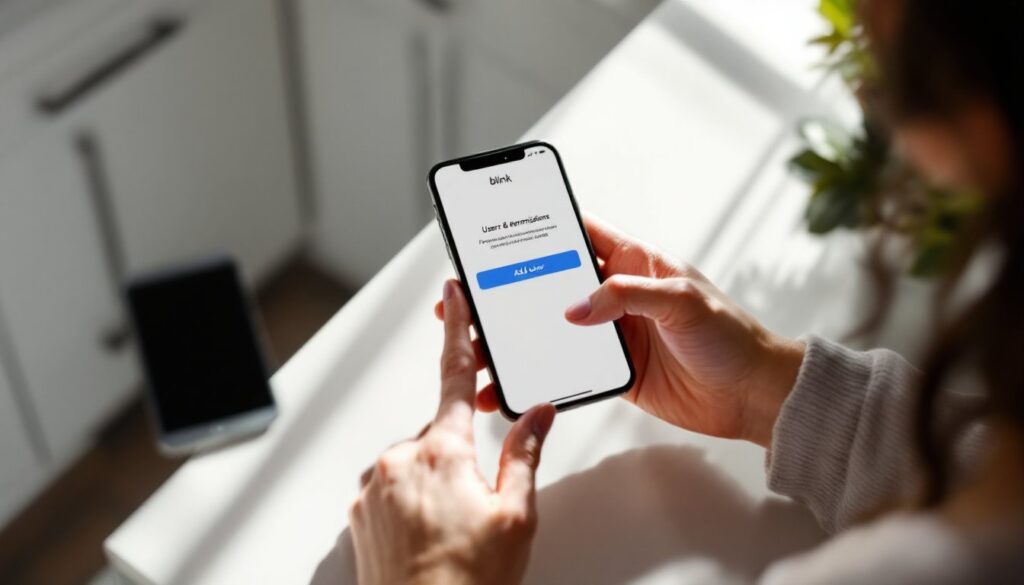
If you’ve installed Blink cameras around your home, you likely want your family, roommates, or trusted guests to view the footage when needed. Sharing Blink camera access doesn’t require handing over your login credentials, a risky move that compromises your security. Instead, Blink’s built-in sharing features let you grant specific permissions to other people while keeping your account control intact. Whether you’re giving a babysitter temporary access, letting a contractor monitor work, or keeping family members updated on home activity, the process is straightforward once you know the steps. This guide walks you through adding users, managing roles, and setting privacy boundaries so everyone stays informed without creating security gaps.
Table of Contents
ToggleKey Takeaways
- Share Blink camera access without handing over your login credentials by inviting users through the Blink app with granular permission controls.
- Use role-based access levels like Viewer (watch-only) or Admin to control what shared users can see and do with your cameras.
- Set time-limited invitations and expiration dates for temporary access, especially for contractors and houseguests, so permissions automatically revoke.
- Grant shared access to only the cameras people actually need rather than the entire system to minimize exposure of sensitive areas.
- Enable two-factor authentication on your Blink account and use strong passwords to protect your account from compromise.
- Regularly audit who has access and immediately revoke permissions if someone changes jobs, loses their device, or no longer needs access.
Why You Might Want to Share Your Blink Camera Access
There are several practical reasons to grant camera access to others. Family members living elsewhere may want to check in on aging parents or children. If you hire someone for repairs or yard work, they or a supervisor might need to confirm they’re on-site and working as scheduled. Renters and landlords sometimes share access for maintenance issues. Pet owners occasionally give trusted friends camera access while traveling so someone can monitor their animals.
The key benefit is peace of mind without sacrificing privacy. Rather than sharing your master password, which gives total account control, you’re issuing limited, revocable permissions. Someone with shared access can view live streams and recordings but typically can’t delete footage, change settings, or remove cameras unless you explicitly grant those permissions. This separation of duties prevents accidents and unauthorized changes to your security setup.
How to Add Users to Your Blink Account
Using the Mobile App to Invite Users
Start by opening the Blink Home app on your smartphone. Tap the Settings icon (usually a gear symbol) in the bottom-right corner, then select Users & Permissions or Invite Users, depending on your app version.
Tap Add User or Invite. You’ll see a prompt asking for the email address of the person you want to grant access. Enter their email address precisely, a typo will send the invitation to the wrong person. The Blink app will send an automated email to that address with an invitation link.
The invited person must have a Blink account or create one. They’ll click the link in the invitation email and accept the terms. Once they accept, they gain access to your shared cameras immediately. They don’t need to be added to your home network or connected to your Wi-Fi, they access your cameras through the same Blink cloud infrastructure you use.
Managing Invitations and User Roles
Not all invitations are accepted instantly, so check your pending invitations. In the Users & Permissions menu, you’ll see a Pending section showing invitations that haven’t been claimed yet. If someone doesn’t accept within a week or two, you can resend the invitation or revoke it outright.
Blink offers different permission levels for shared users. Some accounts allow you to set Viewer access (watch only) or Admin access (full control). The exact roles depend on your Blink subscription level and device type. A Viewer can see live feeds and recordings but cannot arm/disarm the system or modify settings. An Admin has broader control, including the ability to add other users themselves. When inviting someone, select the appropriate role before sending the invitation.
Controlling Permissions and Privacy Settings
Once a user is added, review what they can actually see and do. Tap on their name or profile in the Users & Permissions section to open their permission details. You can control which cameras they access, if you have four Blink cameras, you might share only the front-door and backyard cameras with a house sitter, keeping the bedroom camera private.
You can also set time-based access. Some Blink systems allow you to specify that a guest’s access expires on a certain date. This is especially useful for temporary situations like houseguests or contractors. Set an expiration date when you invite them, and their access automatically revokes when that date arrives, no need to remember to manually remove them.
If a family member has their Blink app on a shared phone (a child’s tablet, for example), that device gains access as long as they’re logged in. Monitor which phones or tablets have the app installed. If someone loses their phone or changes jobs, revoke their access immediately by removing them from the user list. Unlike passwords, this change takes effect instantly and remotely.
Best Practices for Secure Camera Sharing
Only share access with people you genuinely trust. A neighbor asking to “borrow” access to monitor your property while you’re away might seem helpful, but you’re handing visibility into your routines and habits. Limit the number of people with access and regularly audit who has it.
Use strong, unique passwords on your own Blink account. If your account is compromised, a hacker gains control of all shared access too. Enable two-factor authentication on both your Blink account and the email address associated with it. This extra security step makes it much harder for someone to hijack your account, even if they obtain your password.
When sharing with contractors or temporary workers, use time-limited invitations. Set access to expire the day the work finishes rather than letting it linger indefinitely. If you share with a pet sitter or houseguest, give them the minimum camera access they need, one or two cameras, not the entire system. Recent guides on sharing Blink camera footage emphasize that limiting scope reduces accidental exposure of sensitive areas.
Communicate clear ground rules to shared users. Let them know whether they should expect to see motion-triggered alerts, if they can download clips, or if they’re simply viewing live feeds. This prevents confusion and keeps everyone on the same page about appropriate usage.
Troubleshooting Common Sharing Issues
The invited person never received an email. Check that you entered their email address correctly. Ask them to look in their spam or junk folder, invitation emails sometimes get filtered. If the email is genuinely missing, try resending the invitation from the app. Confirm the person has a Blink account or is willing to create one: they can’t accept an invite without one.
They accepted the invitation but can’t see the cameras. Make sure your cameras are online and connected to your Blink system. The shared user needs to refresh their app or log out and back in. If a specific camera isn’t visible, check that you granted them permission to access that particular device in the user permissions menu. You may have accidentally restricted access to it.
You want to revoke someone’s access immediately. Open Users & Permissions, find their name, and tap Remove or Revoke Access. This takes effect right away, they’ll no longer see your cameras the next time they open the app or refresh it. They won’t receive a notification that access was removed, so if you expect an awkward conversation, send them a message separately.
The app shows an “access denied” error. Your Blink subscription may have lapsed or your account may have reached its user limit. Check your subscription status in the app settings. Information on sharing Blink camera access with family notes that some subscription tiers cap the number of users you can invite. Upgrade if needed, or remove a user who no longer requires access.
They can see the cameras but not live view or clips. Some accounts restrict what shared users can do. Check their permission level, they may be set to view-only for certain features. You can sometimes increase their permissions in the user settings, depending on your subscription. If the option isn’t available, it’s a subscription limitation, not a mistake.